Source: https://www.trufflesuite.com/tutorial
This tutorial will take you through the process of building your first dapp---an adoption tracking system for a pet shop!
This tutorial is meant for those with a basic knowledge of Ethereum and smart contracts, who have some knowledge of HTML and JavaScript, but who are new to dapps.
Note: For Ethereum basics, please read the Truffle Ethereum Overview tutorial before proceeding.
The website structure and styling will be supplied. Our job is to understand the smart contract and front-end logic for its usage.
There are a few technical requirements before we start. Please install the following:
- Node.js v8+ LTS and npm (comes with Node)
- Ganache (comes with Node)
Once we have those installed, we only need one command to install Truffle:

npm install -g truffleTo verify that Truffle is installed properly, type truffle version on a terminal. If you see an error, make sure that your npm modules are added to your path.
-
In a terminal, make sure you are in the root of the directory that contains the dapp and type:
truffle compile
Note: If you're on Windows and encountering problems running this command, please see the documentation on resolving naming conflicts on Windows.
You should see output similar to the following:
Compiling your contracts...
===========================
> Compiling ./contracts/Adoption.sol
> Compiling ./contracts/Migrations.sol
> Artifacts written to /Users/cruzmolina/Code/truffle-projects/metacoin/build/contracts
> Compiled successfully using:
   - solc: 0.5.0+commit.1d4f565a.Emscripten.clang
-
Back in our terminal, migrate the contract to the blockchain.
truffle migrate
You should see output similar to the following:
  1_initial_migration.js
  ======================

     Deploying 'Migrations'
     ----------------------
     > transaction hash:    0x3b558e9cdf1231d8ffb3445cb2f9fb01de9d0363e0b97a17f9517da318c2e5af
     > Blocks: 0            Seconds: 0
     > contract address:    0x5ccb4dc04600cffA8a67197d5b644ae71856aEE4
     > account:             0x8d9606F90B6CA5D856A9f0867a82a645e2DfFf37
     > balance:             99.99430184
     > gas used:            284908
     > gas price:           20 gwei
     > value sent:          0 ETH
     > total cost:          0.00569816 ETH


     > Saving migration to chain.
     > Saving artifacts
     -------------------------------------
     > Total cost:          0.00569816 ETH


  2_deploy_contracts.js
  =====================

     Deploying 'Adoption'
     .............................
     .............................
You can see the migrations being executed in order, followed by some information related to each migration. (Your information will differ.)
In Ganache, note that the state of the blockchain has changed. The blockchain now shows that the current block, previously 0, is now 4. In addition, while the first account originally had 100 ether, it is now lower, due to the transaction costs of migration. We'll talk more about transaction costs later.
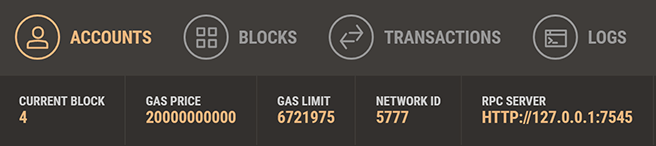
Ganache after migration
-
Back in the terminal, run the tests:
truffle test
If all the tests pass, you'll see console output similar to this:
   Using network 'development'.

   Compiling your contracts...
   ===========================
   > Compiling ./test/TestAdoption.sol
   > Artifacts written to /var/folders/z3/v0sd04ys11q2sh8tq38mz30c0000gn/T/test-11934-19747-g49sra.0ncrr
   > Compiled successfully using:
      - solc: 0.5.0+commit.1d4f565a.Emscripten.clang

     TestAdoption
       ✓ testUserCanAdoptPet (91ms)
       ✓ testGetAdopterAddressByPetId (70ms)
       ✓ testGetAdopterAddressByPetIdInArray (89ms)


3 passing (670ms)-
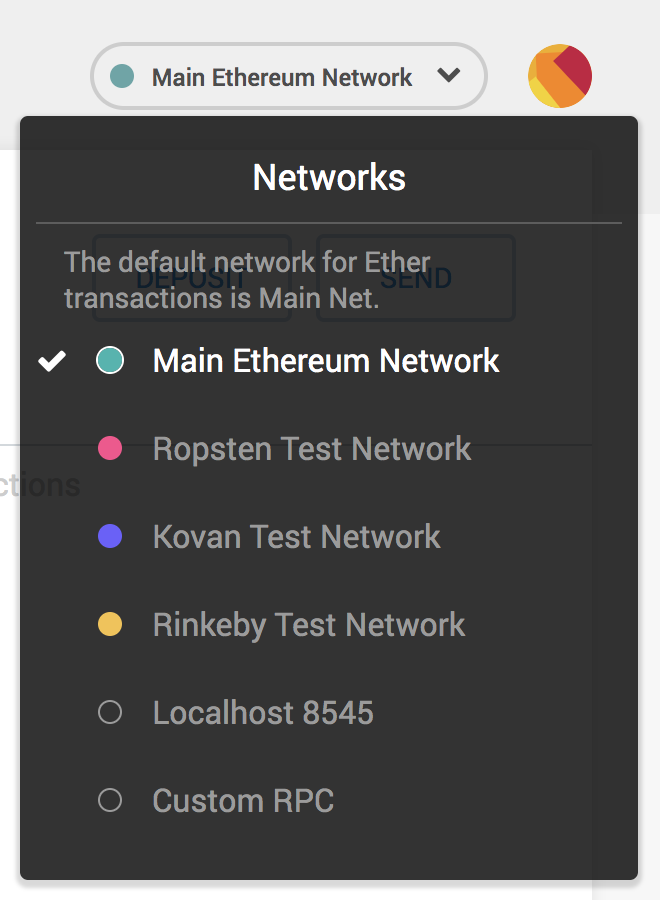
Now we need to connect MetaMask to the blockchain created by Ganache. Click the menu that shows "Main Network" and select Custom RPC.
MetaMask network menu
-
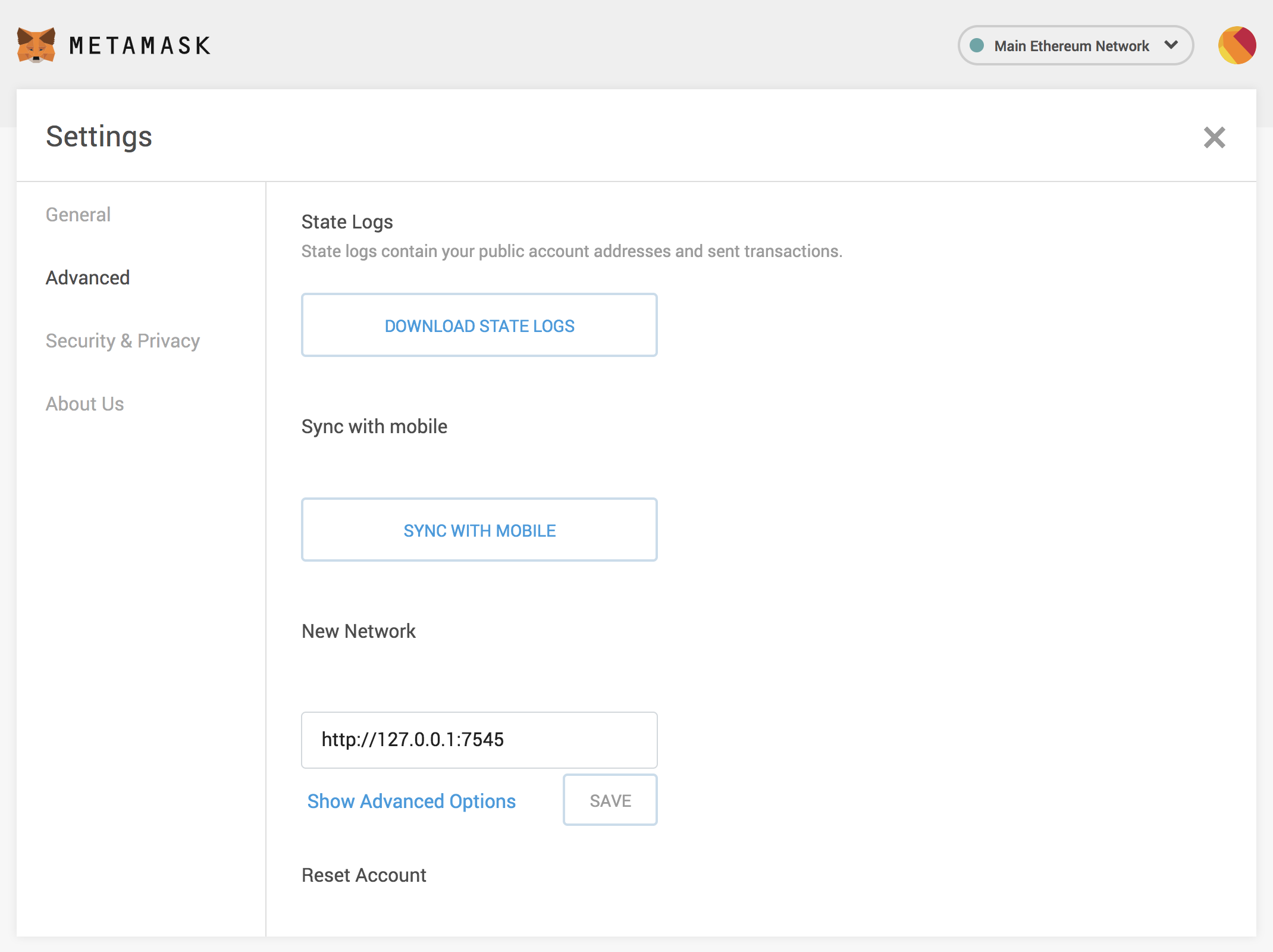
In the box titled "New Network" enter
http://127.0.0.1:7545, chainID '1337', netowork name 'Pet-Shop', currency symbol 'ETH' and click Save.MetaMask Custom RPC
The network name at the top will switch to say
http://127.0.0.1:7545. -
Click the top-right X to close out of Settings and return to the Accounts page.
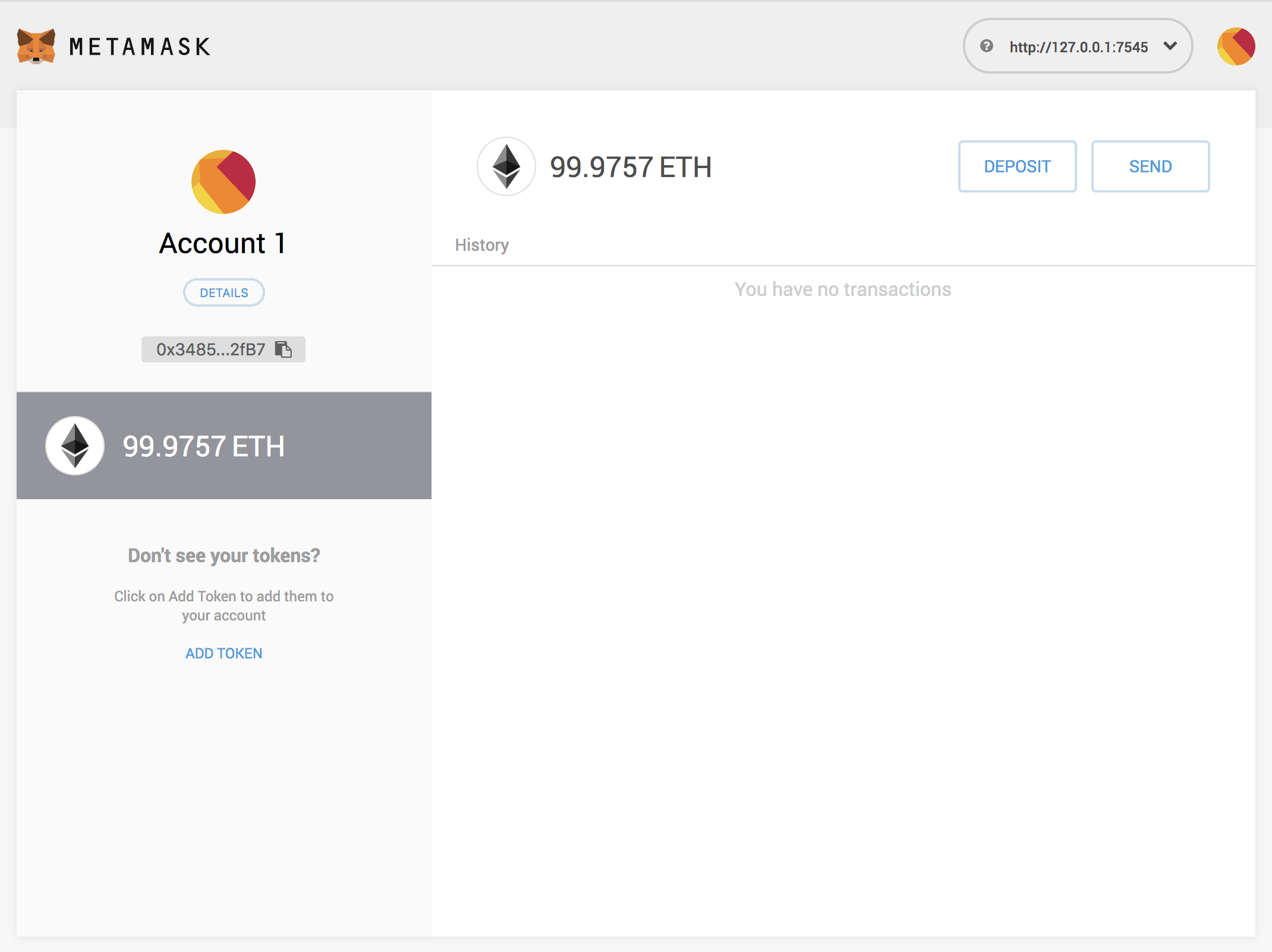
Each account created by Ganache is given 100 ether. You'll notice it's slightly less on the first account because some gas was used when the contract itself was deployed and when the tests were run.
MetaMask account configured
Import a wallet from Ganache to Metamask:
- Click key icon of the wallet in Ganache (tooltip is 'Show Keys')
- Copy private key string
- Open metamask
- Import account
- Paste the private key string and import
-
Start the local web server:
npm run dev
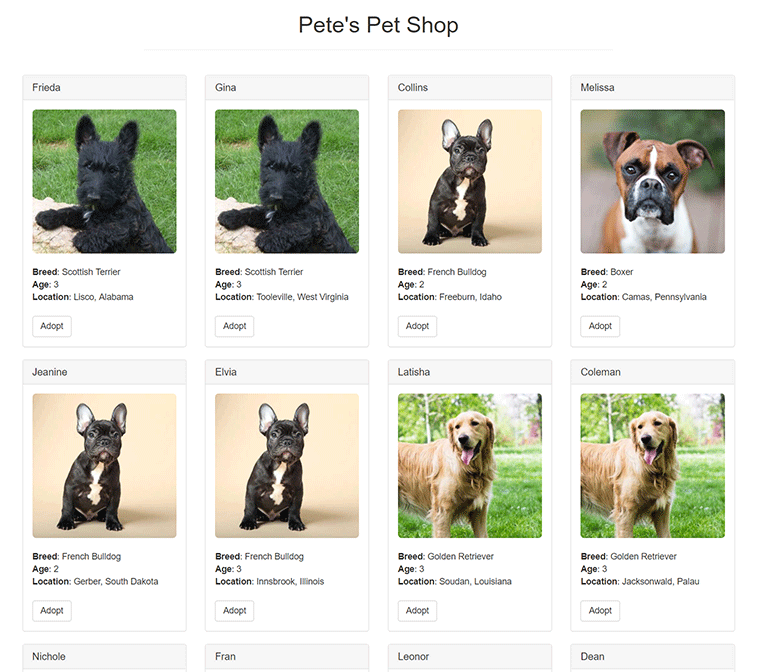
The dev server will launch and automatically open a new browser tab containing your dapp.
Pete's Pet Shop
-
A MetaMask pop-up should appear requesting your approval to allow Pete's Pet Shop to connect to your MetaMask wallet. Without explicit approval, you will be unable to interact with the dapp. Click Connect.
MetaMask approval request
-
To use the dapp, click the Adopt button on the pet of your choice.
-
You'll be automatically prompted to approve the transaction by MetaMask. Click Submit to approve the transaction.
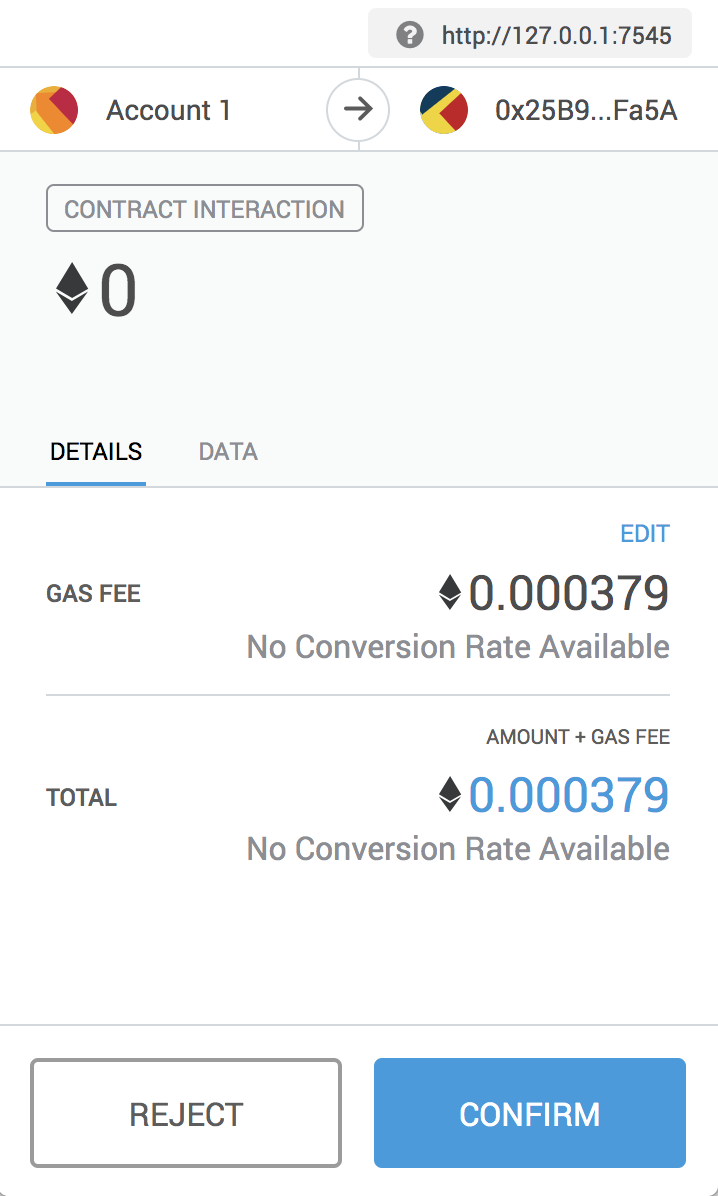



Adoption transaction review
- You'll see the button next to the adopted pet change to say "Success" and become disabled, just as we specified, because the pet has now been adopted.
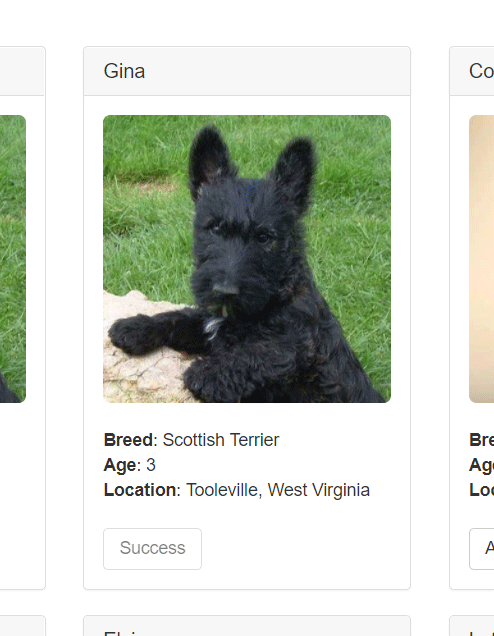
Adoption success
**Note**: If the button doesn't automatically change to say "Success", refreshing the app in the browser should trigger it.
And in MetaMask, you'll see the transaction listed:
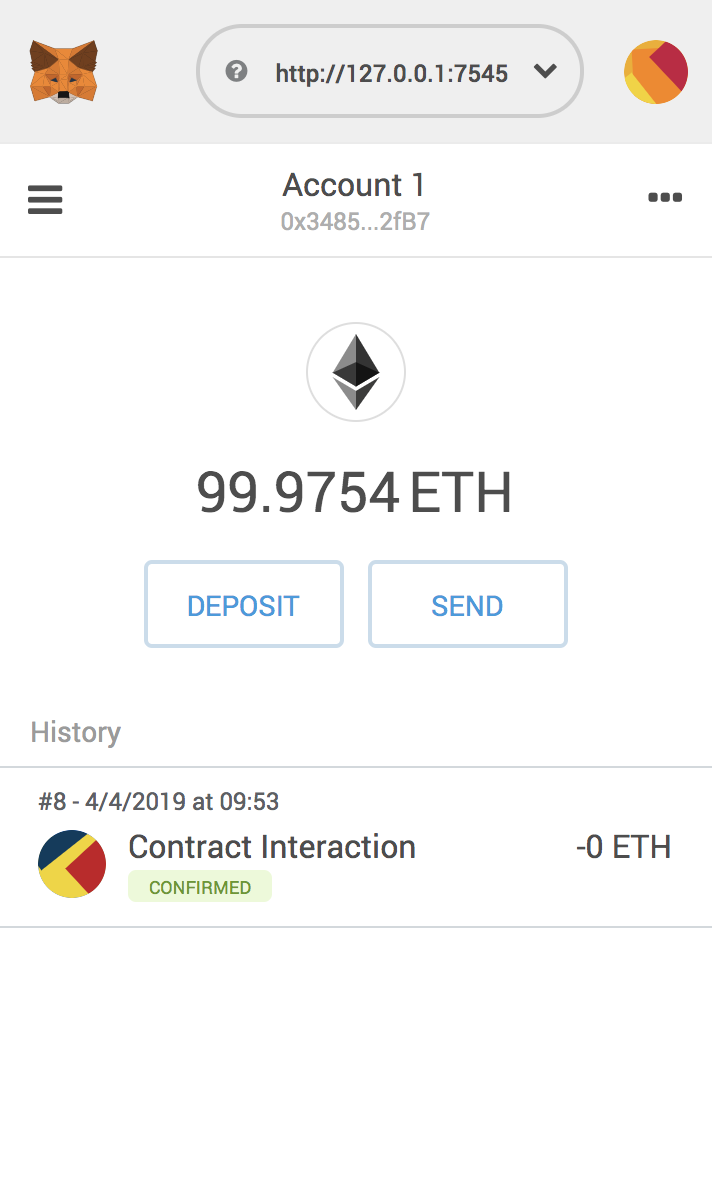
MetaMask transaction
You'll also see the same transaction listed in Ganache under the "Transactions" section.
Congratulations! You have taken a huge step to becoming a full-fledged dapp developer. For developing locally, you have all the tools you need to start making more advanced dapps.