-
Notifications
You must be signed in to change notification settings - Fork 7
LDAP and Enterprise plan activation #183
New issue
Have a question about this project? Sign up for a free GitHub account to open an issue and contact its maintainers and the community.
By clicking “Sign up for GitHub”, you agree to our terms of service and privacy statement. We’ll occasionally send you account related emails.
Already on GitHub? Sign in to your account
Merged
Merged
Changes from all commits
Commits
Show all changes
4 commits
Select commit
Hold shift + click to select a range
File filter
Filter by extension
Conversations
Failed to load comments.
Loading
Jump to
Jump to file
Failed to load files.
Loading
Diff view
Diff view
There are no files selected for viewing

Loading
Sorry, something went wrong. Reload?
Sorry, we cannot display this file.
Sorry, this file is invalid so it cannot be displayed.

Loading
Sorry, something went wrong. Reload?
Sorry, we cannot display this file.
Sorry, this file is invalid so it cannot be displayed.

Loading
Sorry, something went wrong. Reload?
Sorry, we cannot display this file.
Sorry, this file is invalid so it cannot be displayed.

Loading
Sorry, something went wrong. Reload?
Sorry, we cannot display this file.
Sorry, this file is invalid so it cannot be displayed.
This file contains hidden or bidirectional Unicode text that may be interpreted or compiled differently than what appears below. To review, open the file in an editor that reveals hidden Unicode characters.
Learn more about bidirectional Unicode characters
This file contains hidden or bidirectional Unicode text that may be interpreted or compiled differently than what appears below. To review, open the file in an editor that reveals hidden Unicode characters.
Learn more about bidirectional Unicode characters
This file contains hidden or bidirectional Unicode text that may be interpreted or compiled differently than what appears below. To review, open the file in an editor that reveals hidden Unicode characters.
Learn more about bidirectional Unicode characters
| Original file line number | Diff line number | Diff line change |
|---|---|---|
| @@ -0,0 +1,171 @@ | ||
| --- | ||
| title: LDAP authentication | ||
| sidebarTitle: LDAP | ||
| --- | ||
|
|
||
| LDAP (Lightweight Directory Access Protocol) authentication lets your team sign in to Plane using their existing corporate credentials. Instead of creating separate Plane passwords, users authenticate through your organization's directory service. | ||
|
|
||
| ## Before you begin | ||
|
|
||
| You'll need: | ||
|
|
||
| - Plane Commercial Edition with an active Enterprise plan license. | ||
| - Don't have an Enterprise license? Contact Sales at [sales@plane.so](mailto:sales@plane.so) to get started. | ||
| - Already have a license? See how to [activate your Enterprise license](/self-hosting/manage/manage-licenses/activate-enterprise). | ||
| - Connection details for your LDAP server. | ||
| - A service account on your LDAP server with read-only access to the user directory. | ||
|
|
||
| ## Configure LDAP authentication | ||
|
|
||
| 1. Sign in to your Plane instance in [God Mode](/self-hosting/govern/instance-admin). | ||
|  | ||
| 2. Select **Authentication** from the left pane. | ||
| 3. Click **Configure** next to **LDAP** at the bottom of the page. | ||
| 4. Enter your LDAP server details. | ||
|  | ||
| - **Server URI (required)** | ||
| This is the address of your LDAP server. Include the protocol and port number. | ||
|
|
||
| **Format:** | ||
| - For unencrypted connections: `ldap://hostname:389` | ||
| - For encrypted connections (recommended): `ldaps://hostname:636` | ||
|
|
||
| **Examples:** | ||
| ``` | ||
| ldap://ldap.company.com:389 | ||
| ldaps://ad.company.com:636 | ||
| ldap://192.168.1.100:389 | ||
| ``` | ||
|
|
||
| - **Bind DN (required)** | ||
|
|
||
| This is the username of the service account that Plane will use to search your directory. Think of it as Plane's "read-only" account on your LDAP server. | ||
|
|
||
| The format varies depending on your directory service: | ||
|
|
||
| **Active Directory examples:** | ||
| ``` | ||
| cn=PlaneService,ou=Service Accounts,dc=company,dc=com | ||
| plane-svc@company.com | ||
| ``` | ||
|
|
||
| **OpenLDAP examples:** | ||
| ``` | ||
| cn=admin,dc=example,dc=com | ||
| cn=readonly,ou=services,dc=example,dc=com | ||
| ``` | ||
|
|
||
| - **Bind Password (required)** | ||
|
|
||
| Enter the password for your service account (Bind DN). Plane encrypts and stores this securely in its database. | ||
|
|
||
| - **User Search Base (required)** | ||
|
|
||
| This defines where in your directory Plane should look for users. Think of it as the "starting folder" for user searches. | ||
|
|
||
| Use the most specific path possible for better performance. | ||
|
|
||
| **Examples:** | ||
| ``` | ||
| ou=users,dc=example,dc=com | ||
| ou=employees,ou=people,dc=company,dc=com | ||
| cn=users,dc=company,dc=local | ||
| ``` | ||
|
|
||
| - **User Search Filter (optional)** | ||
|
|
||
| This tells Plane how to find users when they try to sign in. Use `{username}` as a placeholder - Plane replaces it with whatever the user types in the login field. | ||
|
|
||
| **Common filters by directory type:** | ||
|
|
||
| | Directory Type | Filter | What it does | | ||
| |----------------|--------|--------------| | ||
| | OpenLDAP | `(uid={username})` | Searches by user ID | | ||
| | Active Directory | `(sAMAccountName={username})` | Searches by Windows login name | | ||
| | Active Directory | `(userPrincipalName={username})` | Searches by email-style username | | ||
| | Any | `(mail={username})` | Searches by email address | | ||
|
|
||
| **Default:** If you don't specify a filter, Plane uses `(uid={username})`. | ||
|
|
||
| **Combined filter example:**\ | ||
| If you want users to sign in with either their username OR email: | ||
| ``` | ||
| (|(uid={username})(mail={username})) | ||
| ``` | ||
|
|
||
| - **User Attributes (optional)** | ||
|
|
||
| List the LDAP attributes Plane should retrieve to create user profiles. Plane uses these to populate the user's display name and email in Plane. | ||
|
|
||
| **How Plane maps attributes:** | ||
|
|
||
| | Plane needs | LDAP provides (in order of preference) | | ||
| |-------------|----------------------------------------| | ||
| | Email address | `mail`, `userPrincipalName` | | ||
| | First name | `givenName`, or first part of `cn` if `givenName` is missing | | ||
| | Last name | `sn`, or last part of `cn` if `sn` is missing | | ||
|
|
||
| **Recommended setting:** | ||
| ``` | ||
| mail,cn,givenName,sn,userPrincipalName,displayName | ||
| ``` | ||
|
|
||
| **Default:** If you don't specify attributes, Plane uses `mail,cn,givenName,sn`. | ||
|
|
||
| - **Provider Name (optional)** | ||
|
|
||
| This is the label that appears on Plane's login button. Choose something your team will recognize. | ||
|
|
||
| **Examples:** | ||
| - `Corporate Directory` | ||
| - `Company SSO` | ||
| - `Active Directory` | ||
|
|
||
| **Default:** If you don't specify a name, Plane shows `LDAP`. | ||
|
|
||
| The login button will display as: **"Sign in with [Provider Name]"** | ||
|
|
||
| 5. Click **Save changes** to apply your LDAP settings. Plane will validate the connection to your LDAP server. | ||
|
|
||
| 6. Users will see **Sign in with LDAP** on Plane's login page and can use their directory credentials to sign in. | ||
|  | ||
|
|
||
| ## How LDAP authentication works | ||
|
|
||
| LDAP authentication in Plane works through a two-phase process. First, Plane locates the user in your directory, then it verifies their credentials. This separation is fundamental to how LDAP works and explains why you need both a service account (Bind DN) and the user's own credentials. | ||
|
|
||
| ### The service account pattern | ||
| Unlike simpler authentication systems where you might directly check a username and password against a database, LDAP uses what's called a "bind" operation. Plane needs to authenticate twice: once as itself (using the Bind DN) to search your directory, and once as the user to verify their password. | ||
|
|
||
| This is why you configure a Bind DN and password - it's Plane's identity on your LDAP server. Think of it as Plane introducing itself before asking about your users. The Bind DN only needs read access because Plane is just looking up information, never modifying your directory. | ||
|
|
||
| ### The authentication flow | ||
| When a user tries to sign in, here's what happens behind the scenes: | ||
|
|
||
| **Connection and service authentication** | ||
| Plane connects to your LDAP server using the Server URI, then authenticates using the Bind DN credentials. If this fails, no users can sign in; the service account must work first. | ||
|
|
||
| **User search** | ||
| Now authenticated, Plane searches for the user starting from the User Search Base and applying the User Search Filter. For example, if a user enters "jsmith" and your filter is `(uid={username})`, Plane searches for `(uid=jsmith)`. The search returns the user's distinguished name (DN), their full path in the directory. | ||
|
|
||
| **User authentication** | ||
| Plane now attempts to bind again using the user's DN and their entered password. If the bind succeeds, the password is correct. This is why LDAP authentication is secure. Plane never stores user passwords; they go straight to your LDAP server for verification. | ||
|
|
||
| **Profile creation** | ||
| Once authentication succeeds, Plane retrieves the User Attributes you configured (like email, first name, last name) from the user's LDAP record. If this is the user's first time signing in, Plane creates their profile using this information. If they've signed in before, Plane updates their profile with any changes from LDAP. | ||
|
|
||
| **Session establishment** | ||
| Finally, Plane creates a session for the user and redirects them into the workspace. From this point on, the user's session works identically to any other Plane session. The LDAP interaction is complete. | ||
|
|
||
| ### Why search filters matter | ||
| The User Search Filter determines sign-in flexibility. A simple filter like `(uid={username})` requires exact usernames, but you can make it more flexible: | ||
|
|
||
| `(mail={username})` lets users sign in with email | ||
| `(|(uid={username})(mail={username}))` allows either username or email | ||
|
|
||
| Filters can also restrict access: `(&(uid={username})(memberOf=cn=plane-users,ou=groups,dc=company,dc=com))` only permits specific group members. | ||
|
|
||
| ### The role of user attributes | ||
| User Attributes tell Plane which LDAP fields to retrieve after authentication. This is separate from the search filter. The filter finds the user, the attributes populate their profile. | ||
|
|
||
| Plane specifically looks for email addresses (required) and names (optional). If your LDAP server uses different attribute names, you need to include them. | ||
20 changes: 20 additions & 0 deletions
20
self-hosting/manage/manage-licenses/activate-enterprise.mdx
This file contains hidden or bidirectional Unicode text that may be interpreted or compiled differently than what appears below. To review, open the file in an editor that reveals hidden Unicode characters.
Learn more about bidirectional Unicode characters
| Original file line number | Diff line number | Diff line change |
|---|---|---|
| @@ -0,0 +1,20 @@ | ||
| --- | ||
| title: Activate Enterprise license | ||
| sidebarTitle: Activate Enterprise | ||
| --- | ||
|
|
||
| Enterprise plan licenses are activated at the instance level through God Mode, not through individual workspace settings. This gives instance administrators centralized control over Enterprise features across all workspaces. | ||
|
|
||
| ## Activate license key | ||
|
|
||
| 1. Sign in to the [Prime portal](https://prime.plane.so/licenses) with the email address you used to purchase your Enterprise plan. | ||
| 2. Navigate to **Manage licenses**. | ||
| 3. Copy the license key for your Enterprise plan. | ||
| 4. Sign in to your Plane instance in [God Mode](/self-hosting/govern/instance-admin). | ||
| 5. Select **Billing** from the left pane. | ||
| 6. Paste your license key in the **Activate Enterprise license** field. | ||
| 7. Click **Activate**. | ||
|
|
||
|  | ||
|
|
||
| Once activated, Enterprise features become available across all workspaces on your instance. |
60 changes: 60 additions & 0 deletions
60
self-hosting/manage/manage-licenses/activate-pro-and-business.mdx
This file contains hidden or bidirectional Unicode text that may be interpreted or compiled differently than what appears below. To review, open the file in an editor that reveals hidden Unicode characters.
Learn more about bidirectional Unicode characters
| Original file line number | Diff line number | Diff line change |
|---|---|---|
| @@ -0,0 +1,60 @@ | ||
| --- | ||
| title: Activate Pro and Business licenses | ||
| sidebarTitle: Activate Pro or Business | ||
| --- | ||
|
|
||
| Pro and Business plan licenses are activated at the workspace level as each license is tied to a specific workspace. | ||
|
|
||
| ## Activate your license | ||
| Activate a paid plan license on your self-hosted Plane instance using a license key from the Prime portal. | ||
|
|
||
| 1. Login to the [Prime portal](https://prime.plane.so/licenses) with the same email address you used to purchase one of our paid plans. | ||
|
|
||
| 2. Go to [Manage licenses](https://prime.plane.so/licenses). Copy the value of the **License key** for the license you want to activate. | ||
|
|
||
| 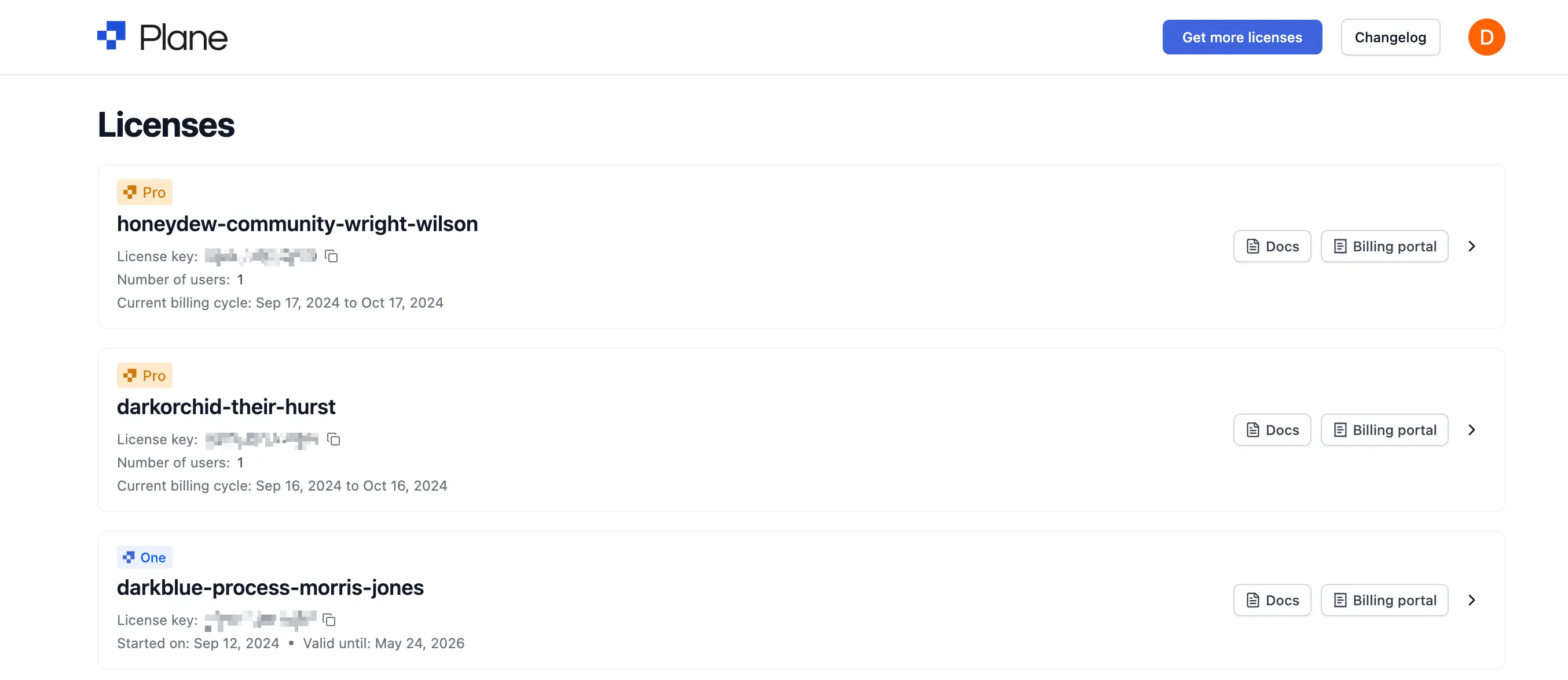 | ||
|
|
||
| <Tip> | ||
| Click the **Get more licenses** button as in the image above on the [Prime portal](https://prime.plane.so/licenses/plans) to buy more licenses. | ||
| </Tip> | ||
| 3. On the Plane app, navigate to **Workspace Settings > Billing and plans** | ||
| 4. Click the **Activate this Workspace** button. | ||
|
|
||
| 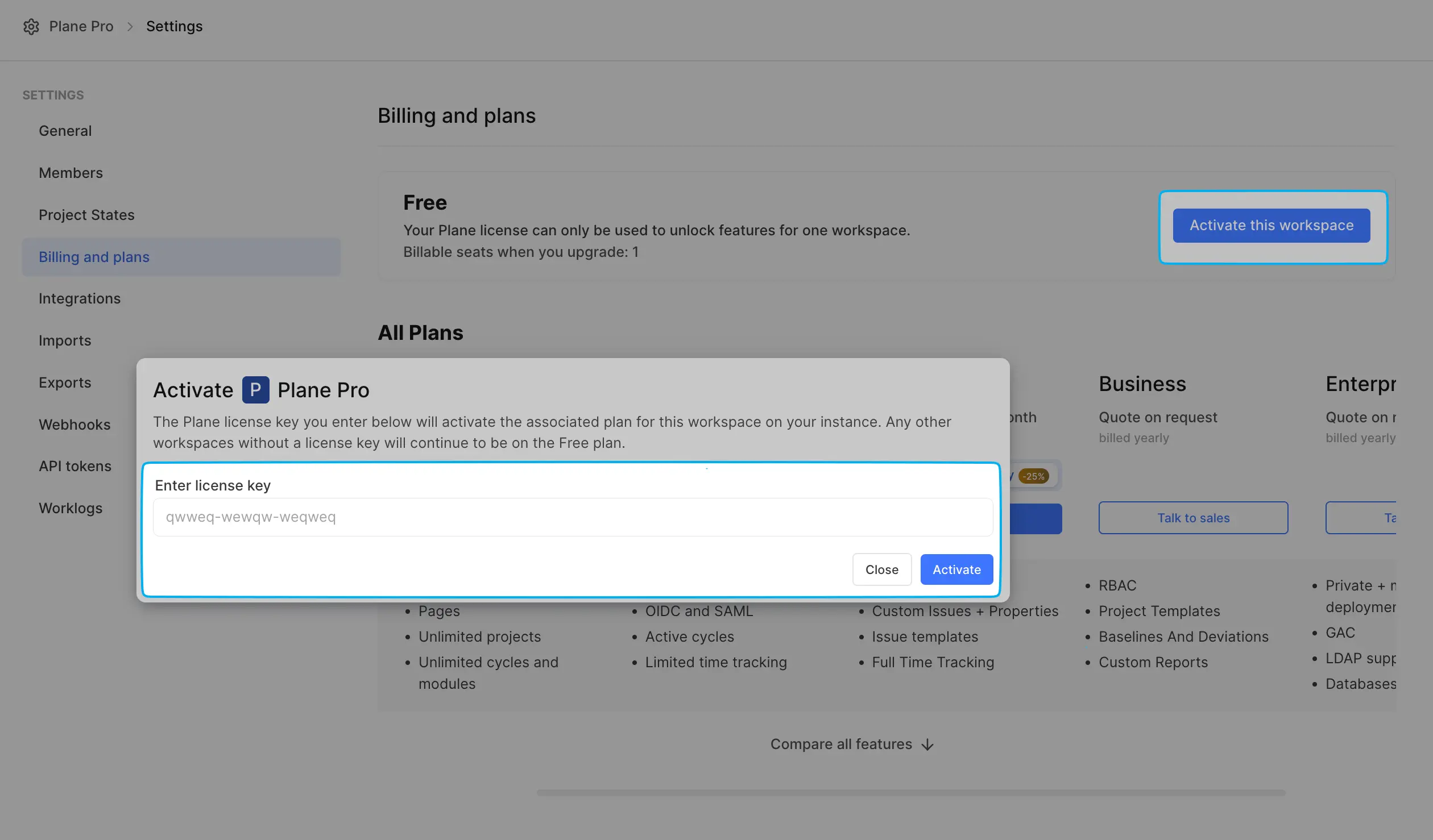 | ||
| 5. Paste the license key in the **Enter license key** box. | ||
| 6. Click **Activate**. You will see a confirmation. | ||
| 7. That's it. To check your plan at any time and find additional details, just go to the **Billing and plans** tab in **Workspace Settings**. | ||
|
|
||
| 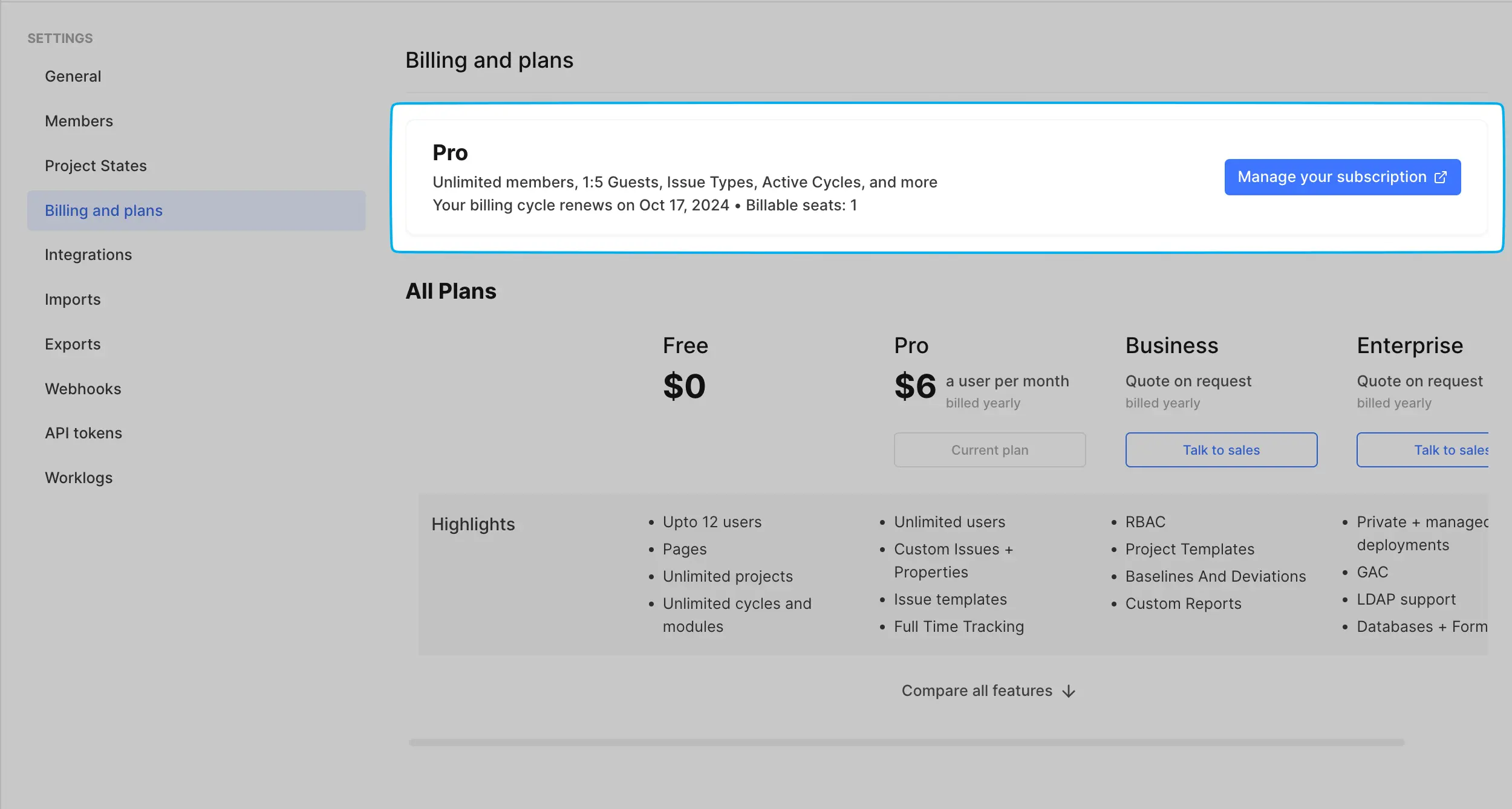 | ||
|
|
||
| ## Sync plan | ||
|
|
||
| If you've made changes to your subscription, like renewing your license, upgrading your plan, or adjusting seats, use **Sync plan** to pull those updates into your workspace. | ||
|
|
||
| Syncing refreshes your workspace with the latest subscription information from the Prime server, including plan type, seat count, expiration dates, and feature access. | ||
|
|
||
| **To sync your plan:** | ||
|
|
||
| 1. Navigate to **Workspace Settings > Billing and plans**. | ||
| 2. Click **Sync plan**. | ||
| 3. Wait for the sync to complete. You'll see a confirmation once your workspace is updated. | ||
|
|
||
| Use this whenever you see a mismatch between what's in the Prime portal and what appears in your workspace, or after making any subscription changes externally. | ||
|
|
||
| ## Delink license key | ||
|
|
||
| Your license key is linked to both a workspace and an instance, meaning it can only be used on one workspace on one machine at a time. If you switch machines or reinstall the Commercial edition, you’ll need to reactivate your workspace. This helps prevent any misuse of the license on multiple machines or workspaces. | ||
|
|
||
| To make it easier for you to move between machines or workspaces, we've added a new Delink feature. This lets you free up your license from its current workspace, so you can reuse it on a new machine or workspace. | ||
|
|
||
| Here’s how to delink your license key from a workspace: | ||
|
|
||
| 1. Head over to the **Billing and Plans** screen of the workspace that's currently using the license. | ||
| 2. Click **Delink license key**. This will release the license key, making it available for use on another machine or workspace. | ||
|
|
||
| 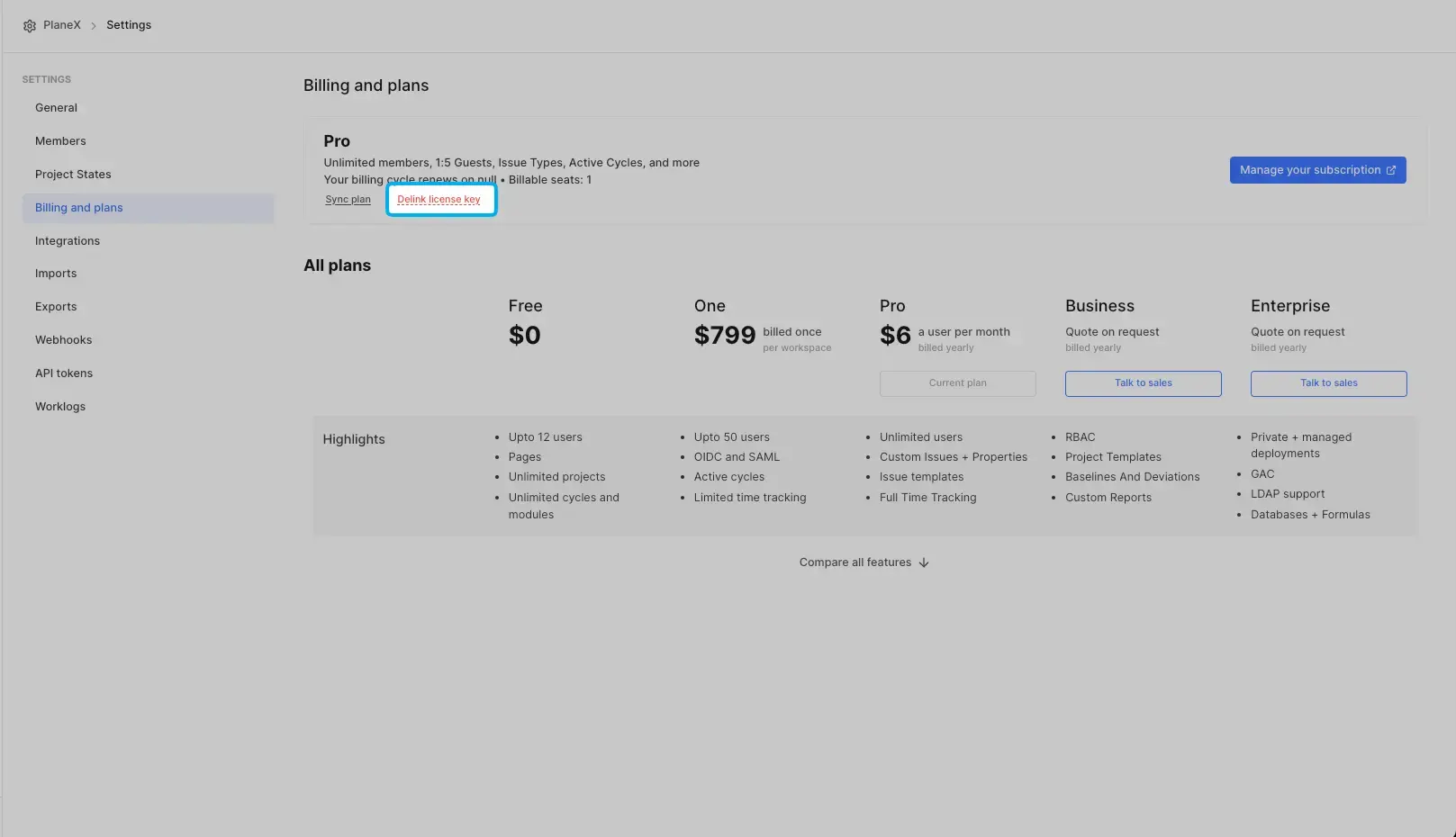 | ||
| 3. Restart the instance using `prime-cli restart`. | ||
| 4. If you’re switching machines or reinstalling the Commercial edition, see [Move Plane instance to another server](https://developers.plane.so/self-hosting/manage/migrate-plane). | ||
| 5. Ensure you are connected to the internet and reactivate the new workspace using the license key you delinked earlier. | ||
|
|
||
|
|
This file contains hidden or bidirectional Unicode text that may be interpreted or compiled differently than what appears below. To review, open the file in an editor that reveals hidden Unicode characters.
Learn more about bidirectional Unicode characters
This file contains hidden or bidirectional Unicode text that may be interpreted or compiled differently than what appears below. To review, open the file in an editor that reveals hidden Unicode characters.
Learn more about bidirectional Unicode characters
This file contains hidden or bidirectional Unicode text that may be interpreted or compiled differently than what appears below. To review, open the file in an editor that reveals hidden Unicode characters.
Learn more about bidirectional Unicode characters
This file contains hidden or bidirectional Unicode text that may be interpreted or compiled differently than what appears below. To review, open the file in an editor that reveals hidden Unicode characters.
Learn more about bidirectional Unicode characters
This file contains hidden or bidirectional Unicode text that may be interpreted or compiled differently than what appears below. To review, open the file in an editor that reveals hidden Unicode characters.
Learn more about bidirectional Unicode characters
This file contains hidden or bidirectional Unicode text that may be interpreted or compiled differently than what appears below. To review, open the file in an editor that reveals hidden Unicode characters.
Learn more about bidirectional Unicode characters
Oops, something went wrong.
Oops, something went wrong.
Add this suggestion to a batch that can be applied as a single commit.
This suggestion is invalid because no changes were made to the code.
Suggestions cannot be applied while the pull request is closed.
Suggestions cannot be applied while viewing a subset of changes.
Only one suggestion per line can be applied in a batch.
Add this suggestion to a batch that can be applied as a single commit.
Applying suggestions on deleted lines is not supported.
You must change the existing code in this line in order to create a valid suggestion.
Outdated suggestions cannot be applied.
This suggestion has been applied or marked resolved.
Suggestions cannot be applied from pending reviews.
Suggestions cannot be applied on multi-line comments.
Suggestions cannot be applied while the pull request is queued to merge.
Suggestion cannot be applied right now. Please check back later.
Uh oh!
There was an error while loading. Please reload this page.