Skip to content
Merged
Changes from all commits
Commits
File filter

Filter by extension

Filter by extension

Conversations
Failed to load comments.
Loading
Jump to
Jump to file
Failed to load files.
Loading
Diff view
Diff view
219 changes: 21 additions & 198 deletions apps/vscode/README.md
Original file line number Diff line number Diff line change
@@ -1,213 +1,36 @@
# quarto-vscode <a href="https://posit.co"><img src="https://cdn.jsdelivr.net/gh/posit-dev/supported-by-posit/img/supported-by-posit-hex-small.png" height="130" alt="Supported by Posit" align="right" /></a>
# quarto-vscode <a href="https://posit.co"><img src="https://cdn.jsdelivr.net/gh/posit-dev/supported-by-posit/img/badge.png" width="100" alt="Supported by Posit" align="right" /></a>

VS Code extension for the [Quarto](https://quarto.org) scientific and technical publishing system. This extension provides language support for Quarto `.qmd` files, including:
A Visual Studio Code extension for the [Quarto](https://quarto.org) scientific and technical publishing system.

- Render command with integrated preview pane
- Syntax highlighting for markdown and embedded languages
- Completion for embedded languages (e.g. Python, R, Julia, LaTeX, etc.)
- Completion and diagnostics for project files and document/cell options
- Completion for citations and cross references
- Commands and key-bindings for running cells and selected line(s)
- Automatic navigation to render errors for Jupyter, Knitr, and YAML
- Live preview for embedded Mermaid and Graphviz diagrams
- Assist panel for contextual help, image preview, and math preview
- Code snippets for common markdown constructs
- Code folding and document outline for navigation within documents
- Workspace symbol provider for navigation across project files
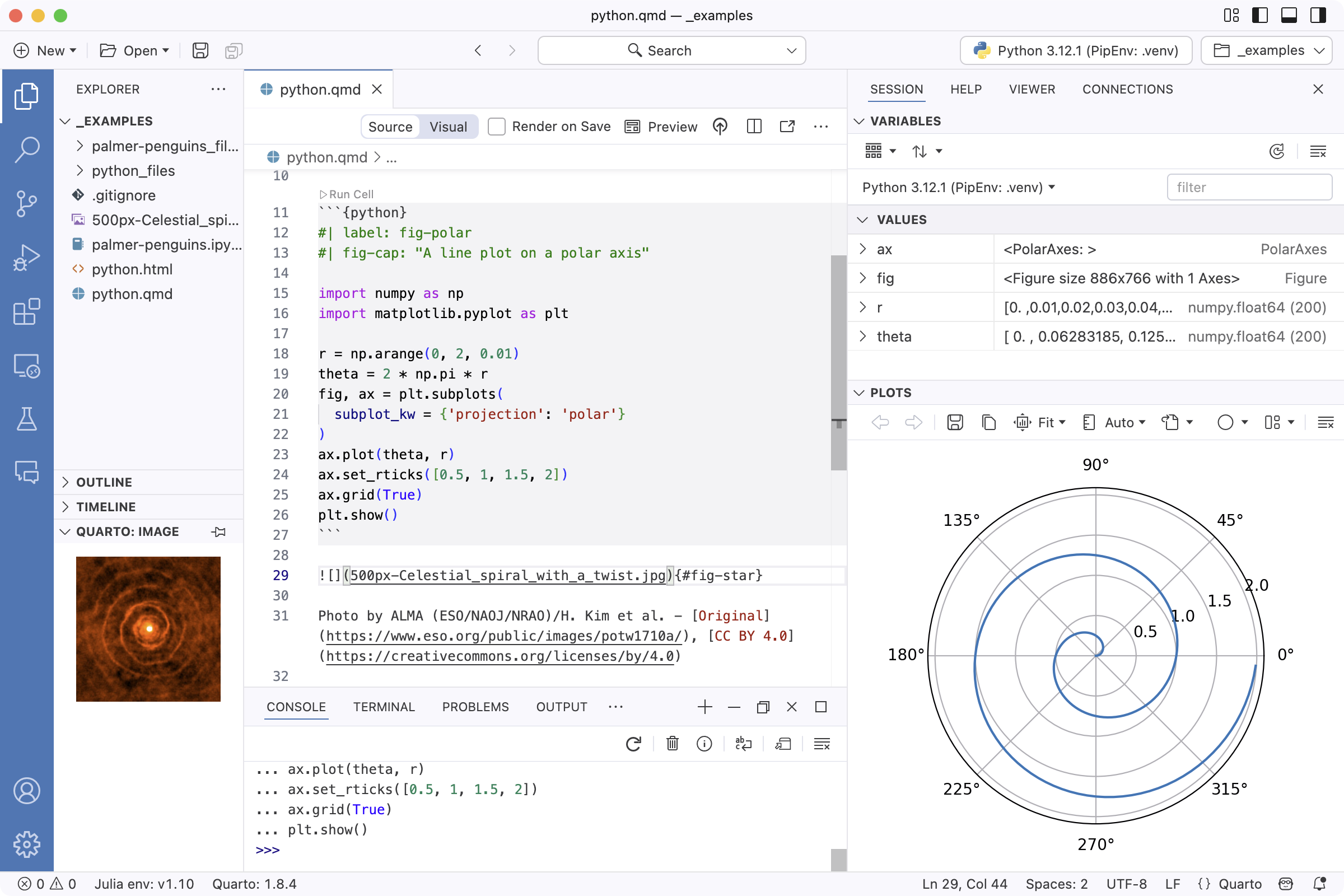
![](https://quarto.org/docs/tools/images/positron-python.png)

## Installation
This extension provides language support for Quarto `.qmd` files for both [VS Code](https://quarto.org/docs/get-started/hello/vscode.html) and [Positron](https://quarto.org/docs/get-started/hello/positron.html).

The easiest way to install is directly from within VS Code (search extensions for "quarto").
Use the functionality provided in this extension to:

You can also install from the [VS Code Extension Marketplace](https://marketplace.visualstudio.com/items?itemName=quarto.quarto), the [Open VSX Registry](https://open-vsx.org/extension/quarto/quarto) or directly from a [VISX extension file](#visx-install).
- Author Quarto documents with enhanced editing features such as syntax highlighting, code completion, diagnostics, specialized code snippets, and document navigation
- Use the Visual Editor for [WYSIWYM](https://en.wikipedia.org/wiki/WYSIWYM) editing of Quarto documents
- Execute code cells interactively
- Render and preview Quarto documents to multiple formats

## Render and Preview
## Positron

The Quarto VS Code extension includes commands and keyboard shortcuts for rendering Quarto documents (both standalone and within websites or books). After rendering, `quarto preview` is used behind the scenes to provide a preview pane within VS Code alongside your document:
[Positron](https://positron.posit.co/) comes ready to work with Quarto out-of-the-box; it includes both the Quarto command line interface, this extension, and support for enhanced features for Python and R as embedded languages.
Copy link
Contributor

Choose a reason for hiding this comment

The reason will be displayed to describe this comment to others. Learn more.

Suggested change
[Positron](https://positron.posit.co/) comes ready to work with Quarto out-of-the-box; it includes both the Quarto command line interface, this extension, and support for enhanced features for Python and R as embedded languages.
[Positron](https://positron.posit.co/) comes ready to work with Quarto out-of-the-box; it includes both the Quarto command line interface, this extension, and support for enhanced features for Python, R, and Julia as embedded languages.

Copy link
Collaborator Author

Choose a reason for hiding this comment

The reason will be displayed to describe this comment to others. Learn more.

I'm going to wait on this, since we don't currently have the enhanced integration for the runtime.


![](https://quarto.org/docs/tools/images/vscode-render.png)
[Read more](https://quarto.org/docs/tools/positron/) about using Quarto with Positron, including how to author [`.ipynb` notebooks](https://quarto.org/docs/tools/positron/notebook.html).

To render and preview, execute the **Quarto: Preview** command. You can alternatively use the <kbd>Ctrl+Shift+K</kbd> keyboard shortcut, or the **Preview** button at the top right of the editor:
## VS Code

![](https://quarto.org/docs/tools/images/vscode-preview-button.png)
To use Quarto in VS Code, install both this extension and the [Quarto command line interface](https://quarto.org/docs/get-started/). To use enhanced features for embedded languages such as completion and code execution, additionally install the VS Code extension for your language(s) of choice:

> Note that on the Mac you should use `Cmd` rather than `Ctrl` as the prefix for all Quarto keyboard shortcuts.
- [Python](https://marketplace.visualstudio.com/items?itemName=ms-python.python) and [Jupyter](https://marketplace.visualstudio.com/items?itemName=ms-toolsai.jupyter) (for code execution)
- [R](https://marketplace.visualstudio.com/items?itemName=REditorSupport.r)
- [Julia](https://marketplace.visualstudio.com/items?itemName=julialang.language-julia)

### Other Formats
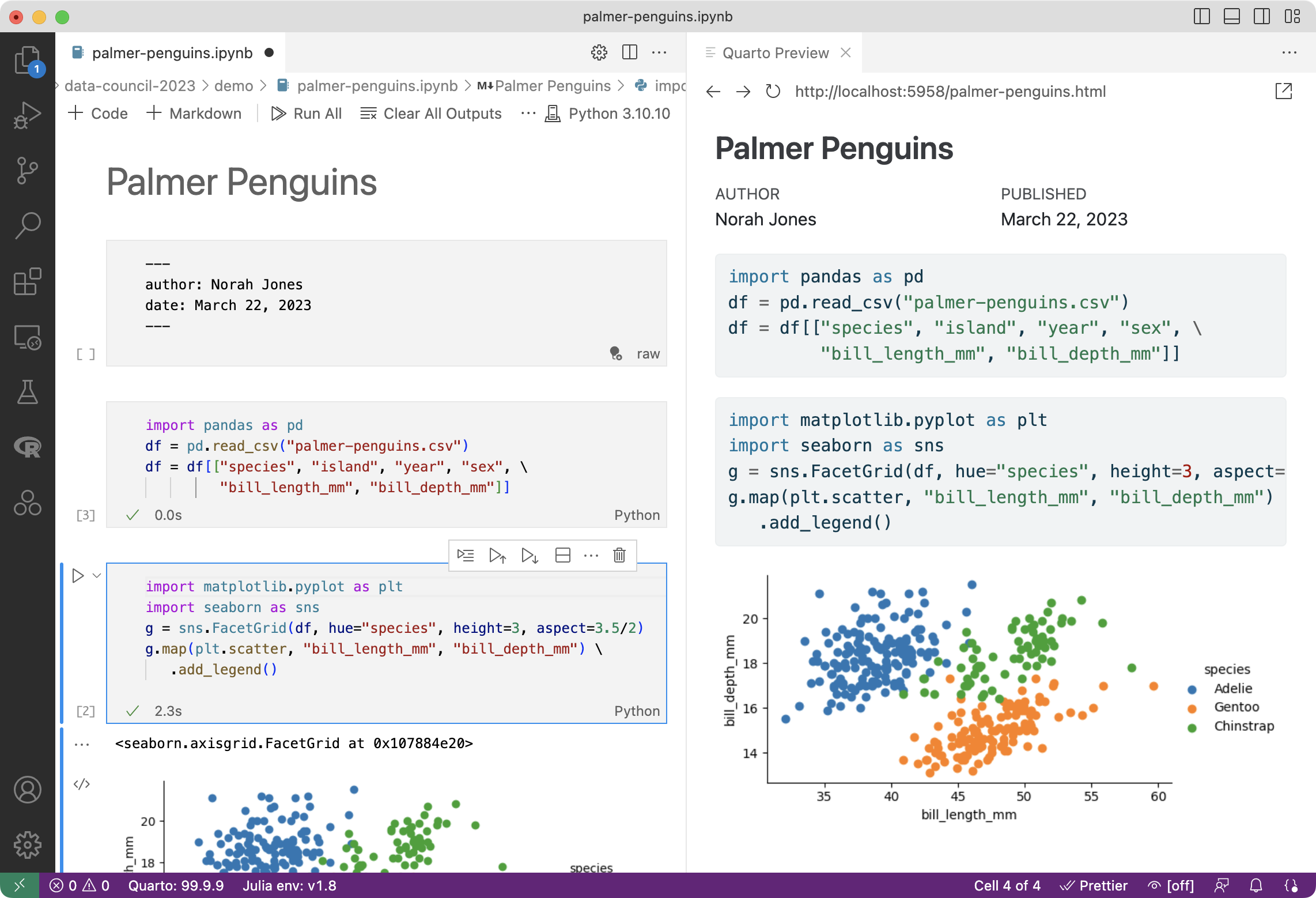
[Read more](https://quarto.org/docs/tools/vscode/) about using Quarto with VS Code, including how to author [`.ipynb` notebooks](https://quarto.org/docs/tools/vscode/notebook.html).

The **Quarto: Preview** command renders the default format of the currently active document. If you want to preview a different format, use the **Quarto: Preview Format** command:
![](https://quarto.org/docs/tools/images/vscode-notebook.png)

![](https://quarto.org/docs/tools/images/vscode-preview-format-menu.png)
## Getting Help

When you execute **Preview Format**, you'll see a quick pick list of formats to choose from (any formats declared in the document as well as some standard formats like PDF and MS Word):

![](https://quarto.org/docs/tools/images/vscode-preview-format.png)

After previewing a different format, the **Quarto: Preview** command and <kbd>Ctrl+Shift+K</kbd> keyboard shortcut will be automatically rebound to the newly selected format for the duration of the current preview. To switch back to previewing the original format, use **Quarto: Preview Format** command again.

> Embedded preview is currently supported for HTML and PDF based formats (including `revealjs` and `beamer` slideshows). However, for Word and other formats you need to use an appropriate external program to preview the output.

### Render Command

The **Quarto: Preview** command is what you will most commonly use while authoring documents. If you have a single format (e.g. HTML or PDF) then previewing also renders your document so it's ready for distribution once you are happy with the output. However, if you have multiple formats will need to explicitly render them (as preview only renders a single format at a time). You can do this with the **Quarto: Render** command:

![](https://quarto.org/docs/tools/images/vscode-render-command.png)

## Render on Save

By default Quarto does not automatically render `.qmd` or `.ipynb` files when you save them. This is because rendering might be very time consuming (e.g. it could include long running computations) and it's good to have the option to save periodically without doing a full render.

However, you can configure the Quarto extension to automatically render whenever you save. You can do this either within VS Code settings or within the YAML options for your project or document. To configure the VS Code setting, search for `quarto.render` in settings and you'll find the **Render on Save** option:

![](https://quarto.org/docs/tools/images/vscode-render-on-save.png)

You might also want to control this behavior on a per-document or per-project basis. If you include the `editor: render-on-save` option in your document or project YAML it will supersede whatever your VS Code setting is. For example:

```yaml
editor:
render-on-save: true
```

## External Preview

If you prefer to use an external browser for preview (or have no preview triggered at all by rendering) you can use the **Preview Type** option to specify an alternate behavior:

![](https://quarto.org/docs/tools/images/vscode-preview-settings.png)

## Code Cells

There are a variety of tools that make it easier to edit and execute
code cells. Editing tools include syntax highlighting, code folding,
code completion, and signature tips:

![](https://quarto.org/docs/tools/images/vscode-code-cell.png)

For Python, R, and Julia cells, commands are available to execute the
current cell, previous cells, or the currently selected line(s). Cell
output is shown side by side in the Jupyter interactive console:

![](https://quarto.org/docs/tools/images/vscode-execute-cell.png)

Execute the current cell with `Ctrl+Shift+Enter`, the current line(s)
with `Ctrl+Enter`, or previous cells with `Ctrl+Alt+P` (note that on the
Mac you should use `Cmd` rather than `Ctrl` as the prefix for all Quarto
keyboard shortcuts).

Enhanced features for embedded languages (e.g. completion, code
execution) can be enabled by installing the most recent version(s) of
these extensions:

- [Python
Extension](https://marketplace.visualstudio.com/items?itemName=ms-python.python)
- [R
Extension](https://marketplace.visualstudio.com/items?itemName=REditorSupport.r)
- [Julia
Extension](https://marketplace.visualstudio.com/items?itemName=julialang.language-julia)

Note that you can quickly insert a new code cell using the
`Ctrl+Shift+I` keyboard shortcut.

## Contextual Assistance

Execute the **Quarto: Show Assist Panel** command to show a panel in the sidebar that shows contextual
assistance depending on the current cursor location:

1. Help/documentation is shown when editing code
2. A realtime preview of equations is shown when editing LaTeX math
3. Thumbnail previews are shown when your cursor is located on a
markdown image.

For example, below help on the matplotlib `plot()` function is shown
automatically when the cursor is located on the function:

![](https://quarto.org/docs/computations/images/python-vscode.png)

## Live Preview

While editing LaTeX math or Mermaid and Graphviz diagrams, click the **Preview** button above the code to open a live preview which will update automatically as you edit.

Here we see a preview of the currently edited LaTeX equation displayed in the Quarto assist panel:

![](https://quarto.org/docs/tools/images/vscode-equation.png)

Here we see a Graphviz diagram preview automatically updated as we edit:

![](https://quarto.org/docs/authoring/images/vscode-graphviz.gif)

## YAML Intelligence

YAML code completion is available for project files, YAML front matter,
and executable cell options:

![](https://quarto.org/docs/tools/images/vscode-yaml-completion.png)

If you have incorrect YAML it will also be highlighted when documents
are saved:

![](https://quarto.org/docs/tools/images/vscode-yaml-diagnostics.png)

Note that YAML intelligence features require version 0.9.44 or later of
the [Quarto
CLI](https://github.com/quarto-dev/quarto-cli/releases/latest).

## Code Snippets

Code snippets are templates that make it easier to enter repeating code
patterns (e.g. code blocks, callouts, divs, etc.). Execute the **Insert
Snippet** command within a Quarto document to insert a markdown snippet:

![](https://quarto.org/docs/tools/images/vscode-snippets.png)

## Document Navigation

If you have a large document use the outline view for quick navigation
between sections:

![](https://quarto.org/docs/tools/images/vscode-outline.png)

You can also use the `Go to Symbol in Editor` command (`Ctrl+Shift+O`)
keyboard shortcut for type-ahead navigation of the current document’s
outline.

Use the `Go to File` command (`Ctrl+P`) to navigate to other files and
the `Go to Symbol in Workspace` command (`Ctrl+T`) for type-ahead
navigation to all headings in the workspace:

![](https://quarto.org/docs/tools/images/vscode-workspace-symbols.png)

## Notebook Editor

In addition to editing Quarto document as plain-text `.qmd` files, you
can also use the VS Code Notebook Editor to author `.ipynb` notebooks
that are rendered with Quarto. Next we’ll review the basics of editing
`.ipynb` notebooks for use with Quarto.

### YAML Front Matter

The first cell of your notebook should be a **Raw** cell that contains
the document title, author, and any other options you need to specify.
Note that you can switch the type of a call to **Raw** using the cell
type menu at the bottom right of the cell:

![](https://quarto.org/docs/tools/images/vscode-raw.png)

### Markdown Cells

Here’s the underlying code for the markdown cell:

![](https://quarto.org/docs/tools/images/vscode-markdown.png)

Note that a Quarto cross-reference (`@fig-polar`) is included in the
markdown. Any valid Pandoc markdown syntax can be included in markdown
cells.

### Output Options

Quarto uses leading comments with a special prefix (`#|`) to denote cell
options. Here we specify the `label` and `fig-cap` options so that the
plot generated from the cell can be cross-referenced.

![](https://quarto.org/docs/tools/images/vscode-cell-options.png)

Note that options must appear at the very beginning of the cell. As with
document front-matter, option names/values use YAML syntax.
If you have questions or need help with Quarto, you can check out the [Quarto discussion forum](https://github.com/orgs/quarto-dev/discussions). If you have a bug report or feature request for this extension, you can use its [GitHub repository](https://github.com/quarto-dev/quarto).