Introduction
Welcome to the bitcodin cloud-transcoding service!
bitcodin is a cloud-based transcoding service which enables to transcode your video assets extremely fast to adaptive bitrate streaming formats such as MPEG-DASH or HLS for any type of device (Web, mobile, SmartTV, etc.). This transcoding process can be done multiple times faster than real-time - e.g. transcode one hour of video in less than a minute - with instant playback even during the transcoding and just seconds after the start the transcoding. bitcodin is also highly scalable, so one can transcode massive amounts of videos in a short period of time, e.g., transcode thousands of video assets in a couple of hours.
Due to this performance benefits, bitcodin enables content providers to bring their content online as fast as possible and basically without delay. And you know, time is money and content is king!
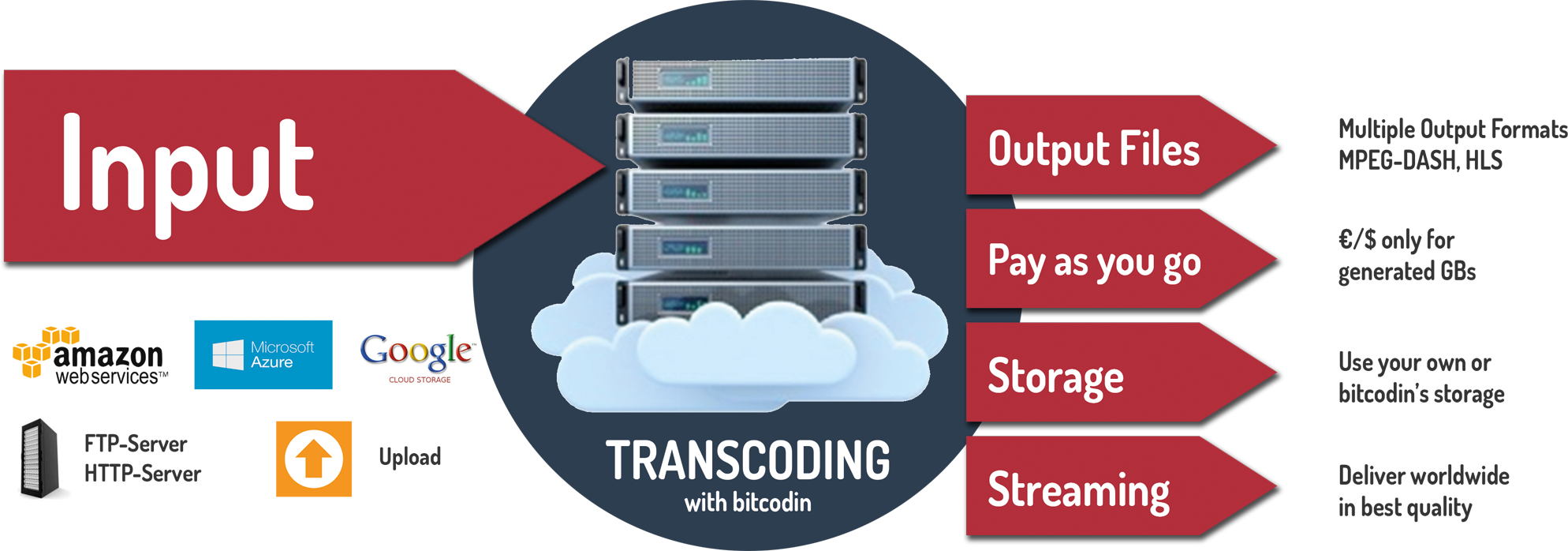
bitcodin can transcode video assets from a variety of input locations (e.g. HTTP or FTP servers, sloud storages, etc.) into single or multiple output qualities (representations/renditions), which are used for adaptive streaming formats such as MPEG-DASH or HLS. The transcoded video files can be transferred to, e.g., distribution servers using FTP or cloud storages such as Amazon S3 or Google Compute Storage.
Using bitcodin, the user only pays the amount transcoded video, i.e. the output generated. The size of the input video, transfers and downloads are not charged, the only thing users have to pay are the transcoded output gigabyte.
bitcodin users have also the choice to store their transcoded videos in the bitcodin storage, and stream them via the bitcodin streaming CDN.
The transcoding workflow within bitcodin consists of an Input video, which describes the location and detail of the input file. This Input is transcoded using an Job, which specifies the transcoding settings such as the used Encoding Profile (e.g. number of representations/renditions, bitrate, resolution, etc.) or the streaming format (e.g. HLS or MPEG-DASH). Once the transcoding is finished, users can Transfer their transcoded content to Outputs such as an FTP server or a cloud storage such as Amazon S3 or Google Compute Storage.
Inputs represent videos of the user, which can be retrieved from an input location such as an FTP server, an HTTP Web server or a cloud storage such as Amazon S3 or Google Compute Storage.
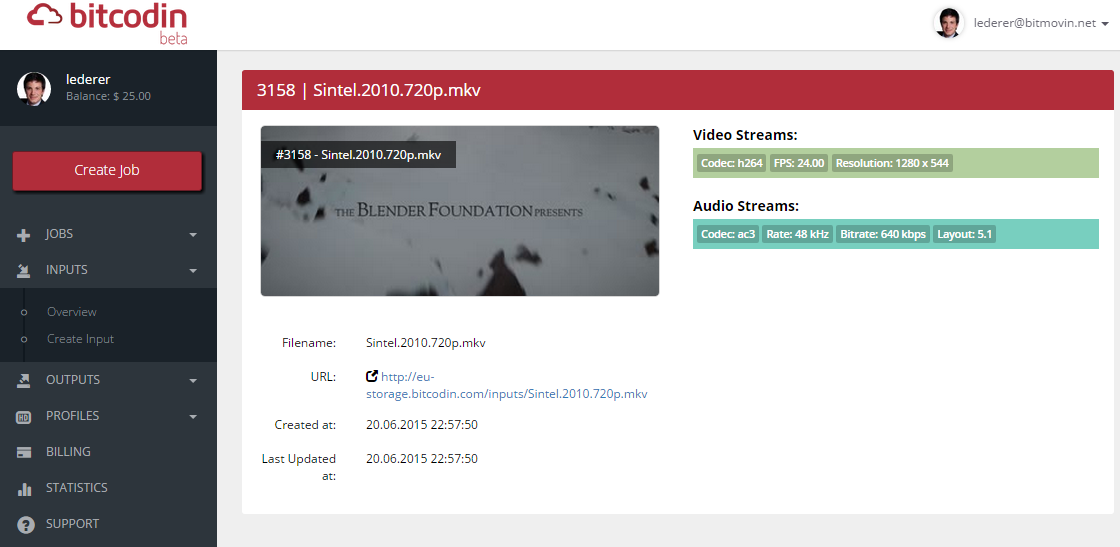
Once an input is created in the bitcodin system - either in the web portal, or using the bitcodin API - the video file is analyzed to get information on the number and details of audio and video tracks. Furthermore, bitcodin generates a preview picture (thumbnail) of the content, which can be used to check the content or as thumbnails for video players.
This information is available using the bitcodin API as well as the web portal:
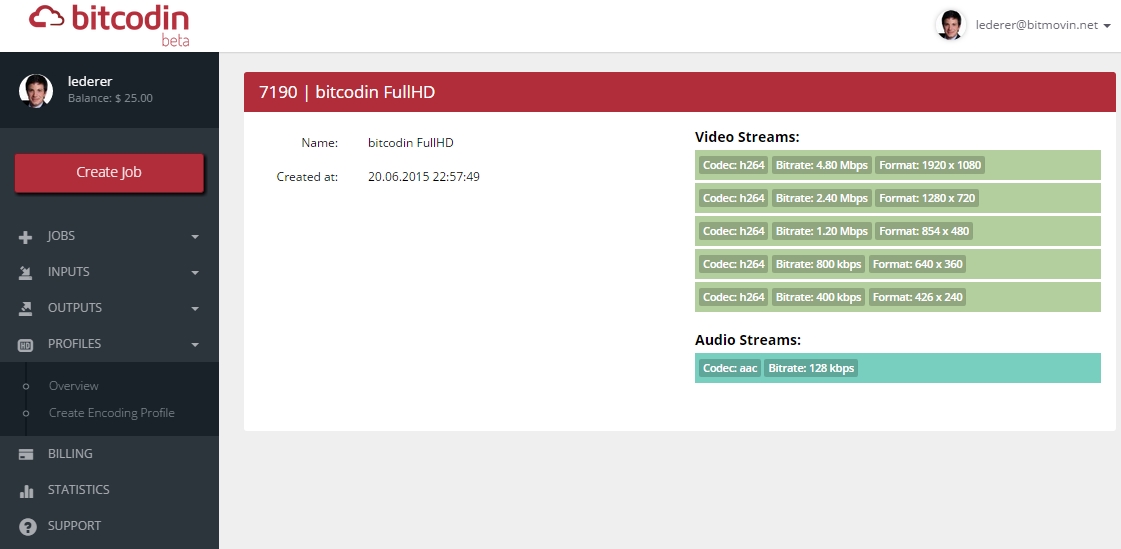
Encoding profiles help you to simplify your encoding process by organizing your encoding configuration. They consist of the number of audio and video output qualities/renditions as well as their encoding settings (bitrate, resolution, etc.), which will be generated out of an input file. This encoding profiles can either be generated on-the-fly for specific videos, or used as generic template for multiple Inputs.
bitcodin users can generate, retrieve, modify and delete encoding profiles using either the bitcodin API or the web portal:
Transcoding-jobs are the central element of bitcodin, they consist of an input which is transcoded according to an encoding profile into MPEG-DASH and/or HLS output. Using the concepts of input and encoding profile, the complexity of video transcoding gets reduced significantly, which helps our users to save time and money.
The bitcodin API provides a comprehensive set of possibilities around the creation of jobs, which makes it easy to integrate bitcodin into existing media workflows, web portal, apps, asset management systems, etc.
In the web portal, this is done in a step-by-step dialog, which starts in selecting the input video:
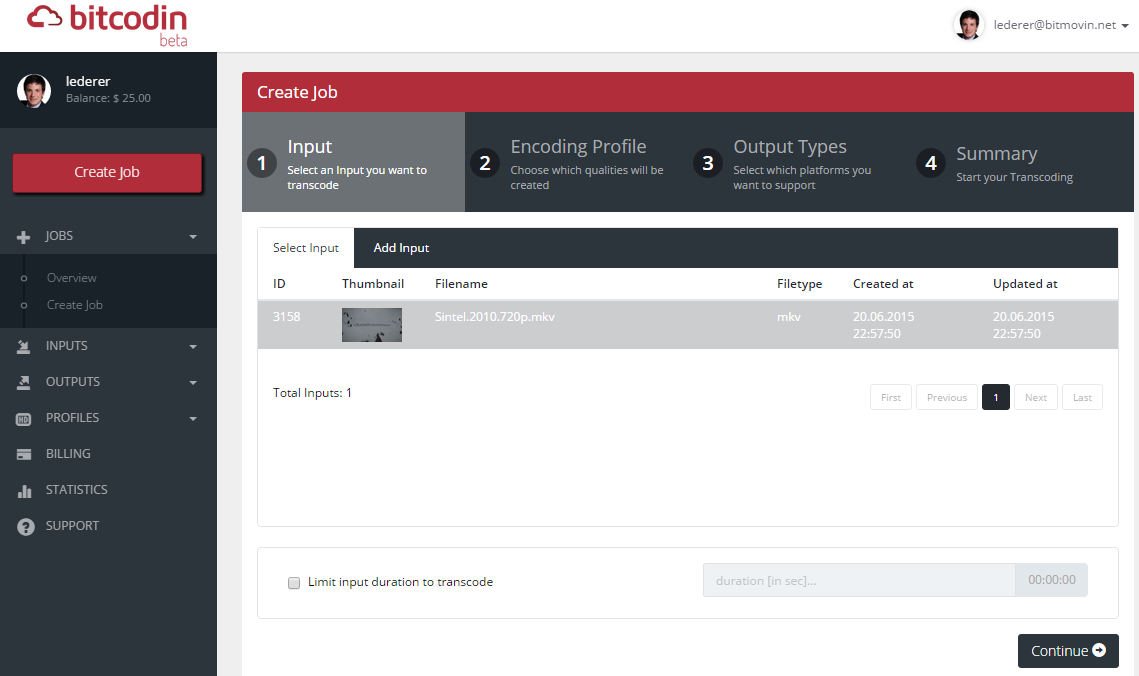
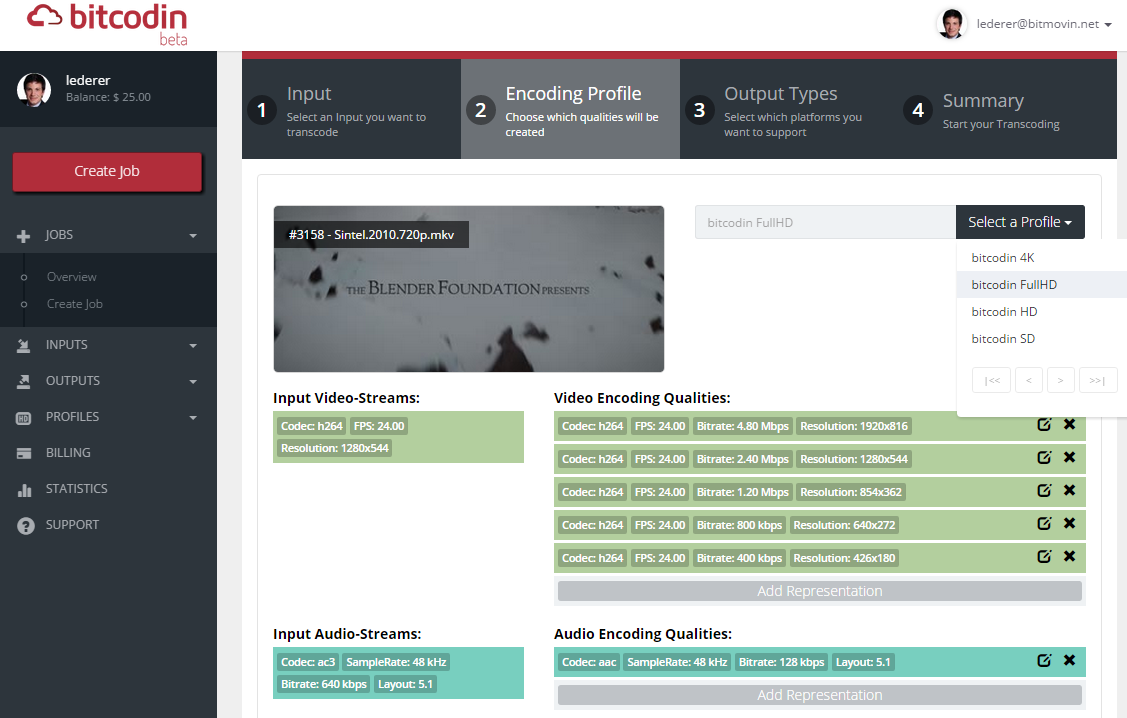
The next step is the selection of an encoding profile. Users have of course also the possibility to configure the output qualities/representation and encoding details from scratch. Here you can see the dialog in the web portal:
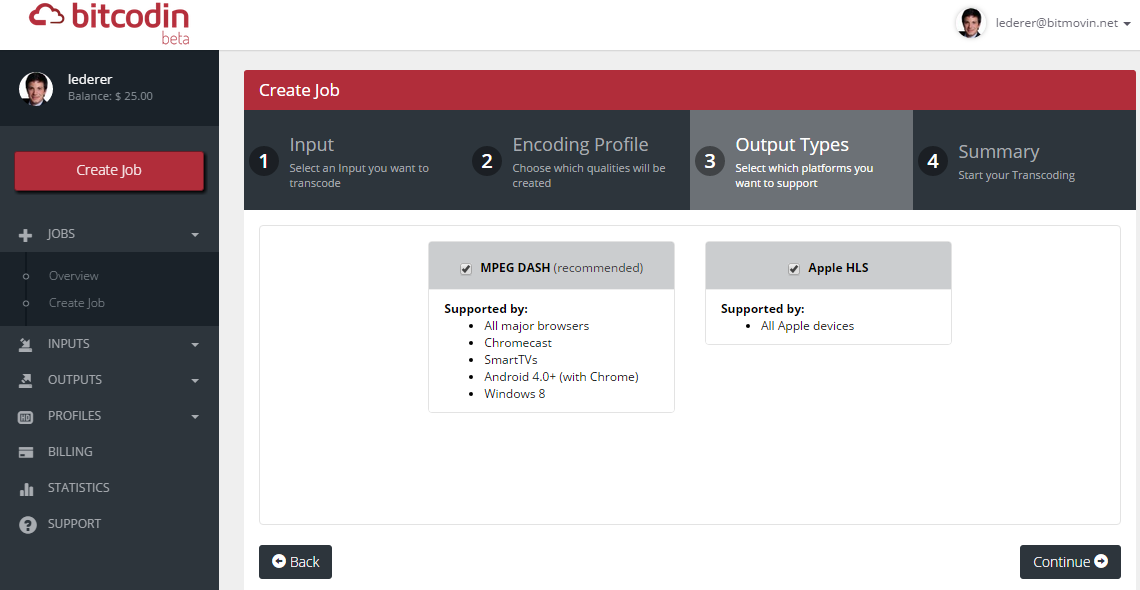
After that, the user can select which streaming format should be generated. bitcodin focusses on adaptive bitrate streaming using MPEG-DASH and HLS, which makes it possible to reach all types of devices and platform in best quality streaming experience:
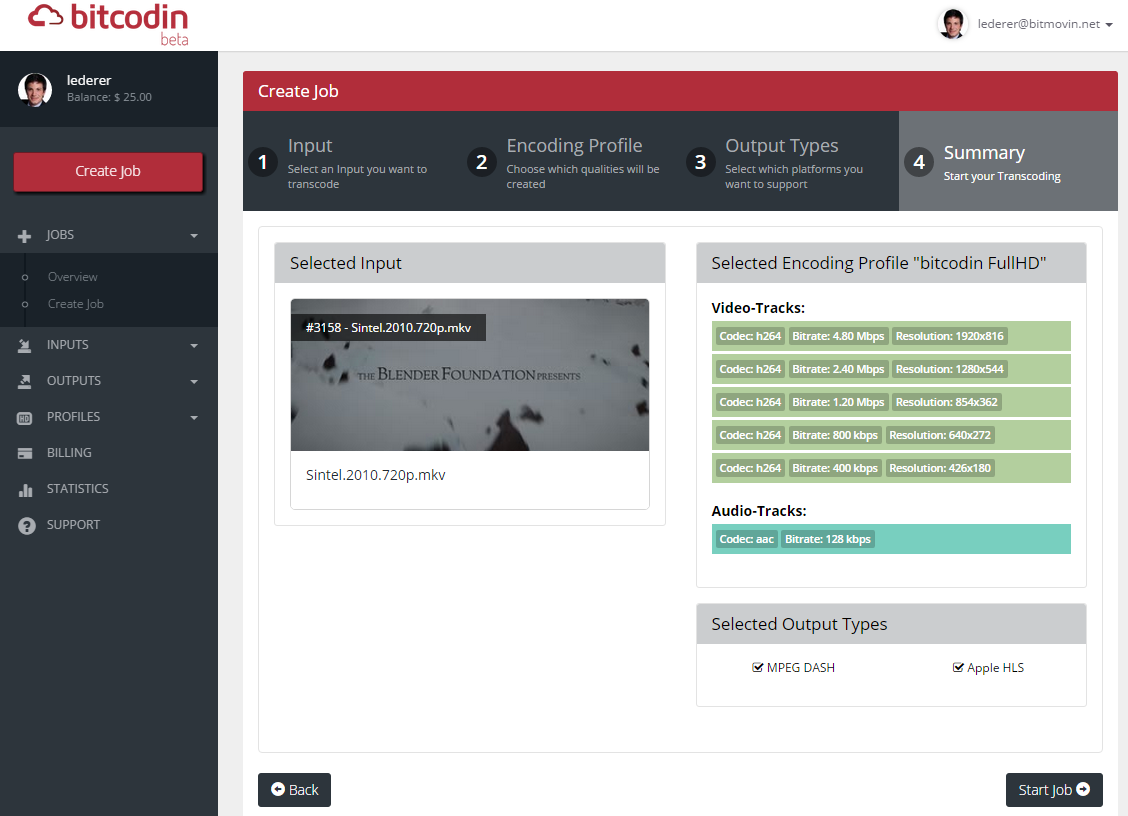
Finally, the user gets an overview of all settings and can start the transcoding Job:
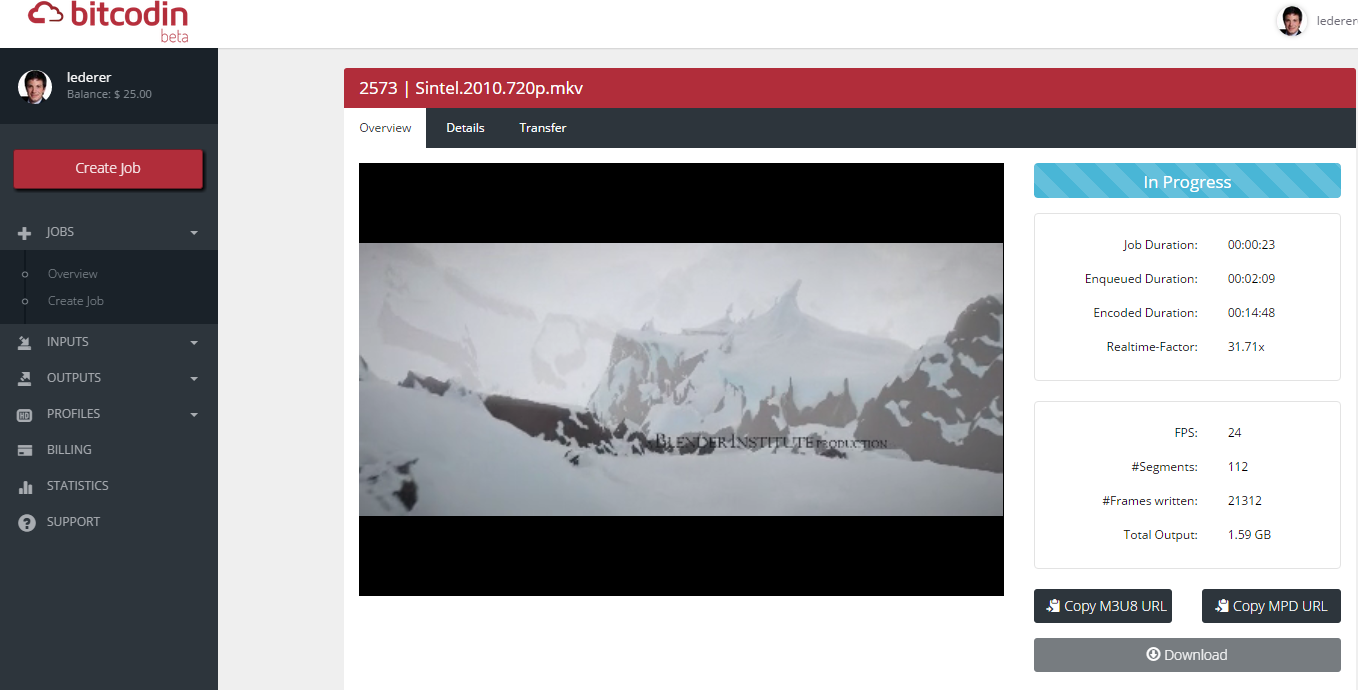
Once the job is started, the video can be played immediately - even while the transcoding process is still going on - due to the instant playback feature of bitcodin:
The transcoded videos can either be stored on the bitcodin storage - which is a highly reliable and redundant cloud storage - or transferred to any output location such as a FTP server, a Cloud-Storage or DropBox. Furthermore, finished transcoding jobs can be downloaded as .zip achieve from the bitcodin storage.
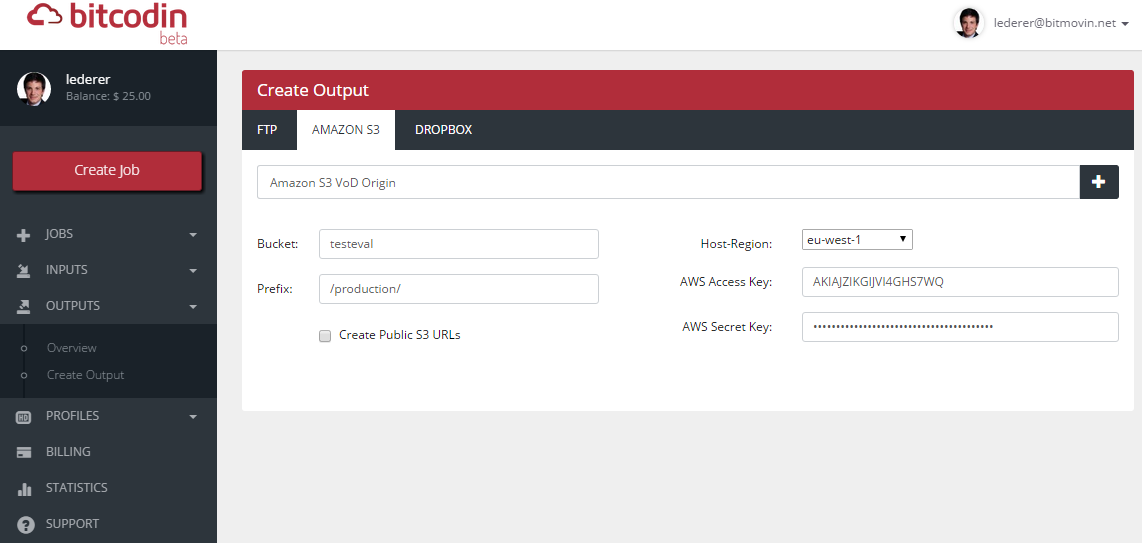
Outputs can be created using either the bitcodin API or the web portal. Once an output is created, bitcodin checks if the credentials are valid as well as if it is allowed to write files, and provides detailed feedback if problems occur.
The encoded media files of finished jobs can be transferred to outputs, even multiple of them in parallel are possible. This gives the user the possibility to move the transcoded videos from the bitcodin storage to another location like an FTP server, a cloud storage or DropBox (see Outputs). The transfer process is handled by the bitcodin service, which also provides detailed feedback on the progress of the transfer process as well as notifications once it is finished.
Starting transfers of finished transcoding jobs is possible using either the bitcodin API or the web portal:
